For administrators
Prepare the checklist.
Start with manuals, reference photos and past reports. Review and refine the generated checklist before your team uses it.
Build checklists from manuals and past reports. Help technicians capture photos and observations, then give reviewers the evidence to make the call.
For plant maintenance and reliability teams.
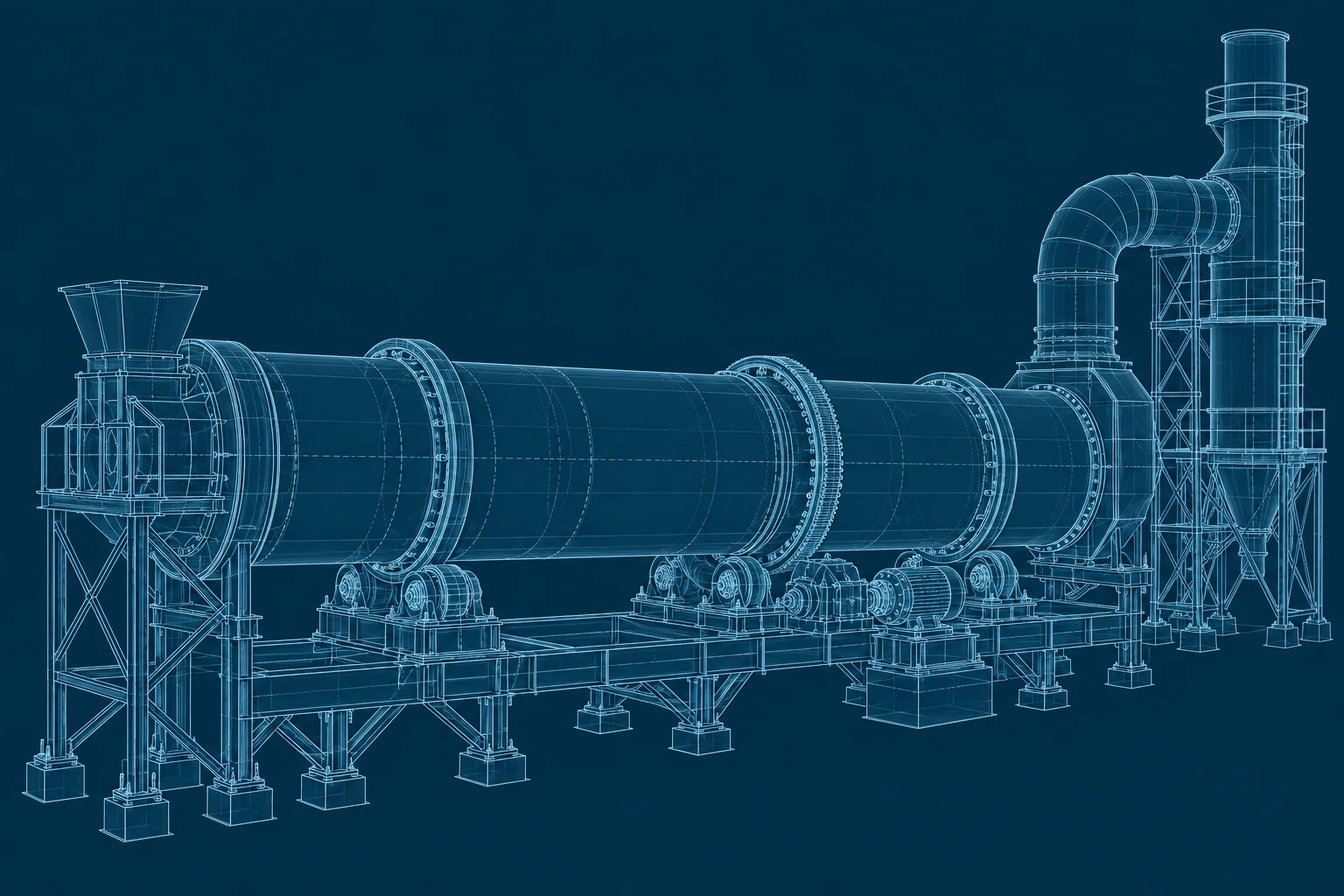 Inspection evidencePhoto + observation
Guided checksMachine knowledge
Asset historyEquipment records
Inspection evidencePhoto + observation
Guided checksMachine knowledge
Asset historyEquipment records
Actual product screens and a generated report. Follow the evidence from the technician’s record into the review.
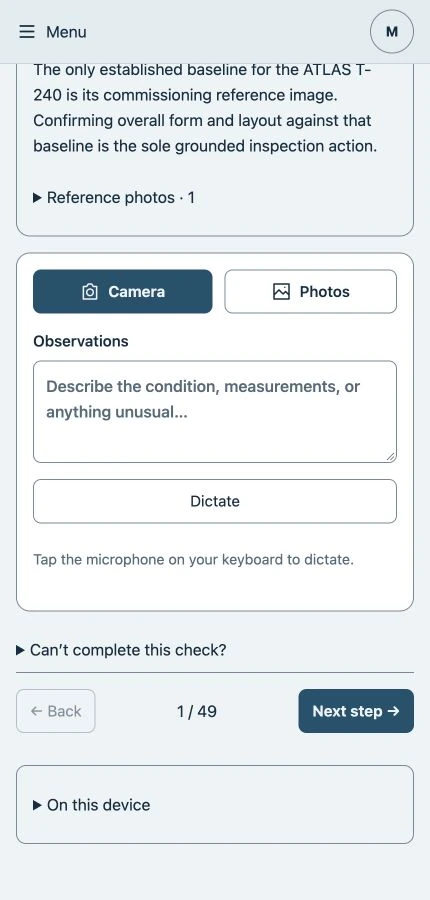
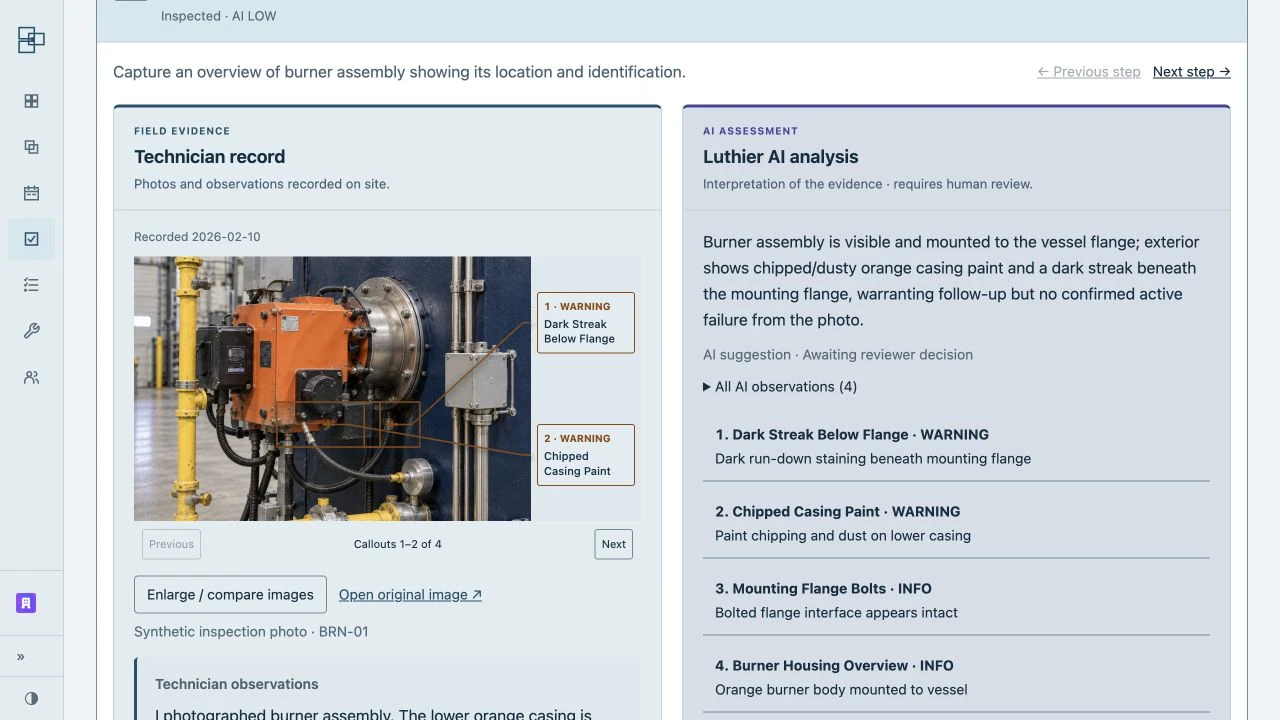
From the example review
AI suggestion: “Dark run-down staining beneath mounting flange.”
Awaiting reviewer decision. The technician’s evidence stays alongside the suggestion so a person can assess it.
Demonstration records · Synthetic equipment photographs · AI suggestions awaiting human review. These are authentic product screens, not customer results.
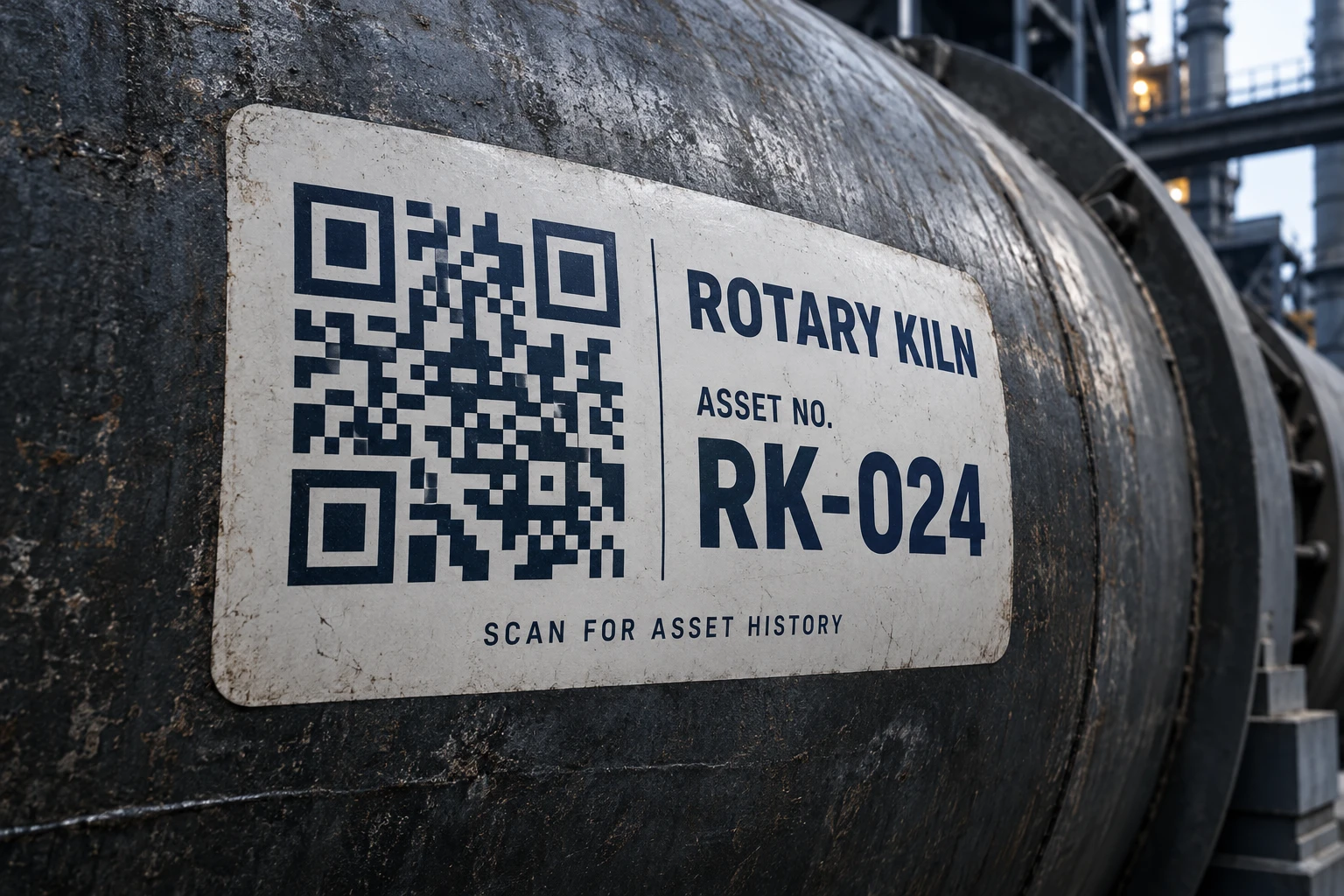
See the generated reportA QR label connects the physical unit to its inspection guidance and history.
Sign in and choose your organization when prompted.
Find inspection guidance, recent inspections and the unit’s schedule.
Follow the inspection workflow for that equipment. Access stays tied to your account and organization.
 The complete workflow · One minute videoFrom what you know.
Start with manuals, reference photos and past reports. Review and refine the generated checklist before your team uses it.
Open the equipment’s inspection, follow the checklist and add photos and observations. Submit the completed inspection for review.
Review the evidence and AI findings, record decisions, and approve the inspection. Assign follow-up work separately, with a clear owner and history.
This actual generated report keeps the technician’s observation separate from the AI interpretation. The example is awaiting human review; it does not contain approved maintenance decisions.
Download example PDF PDF · 8.4 MB · Opens in a new tab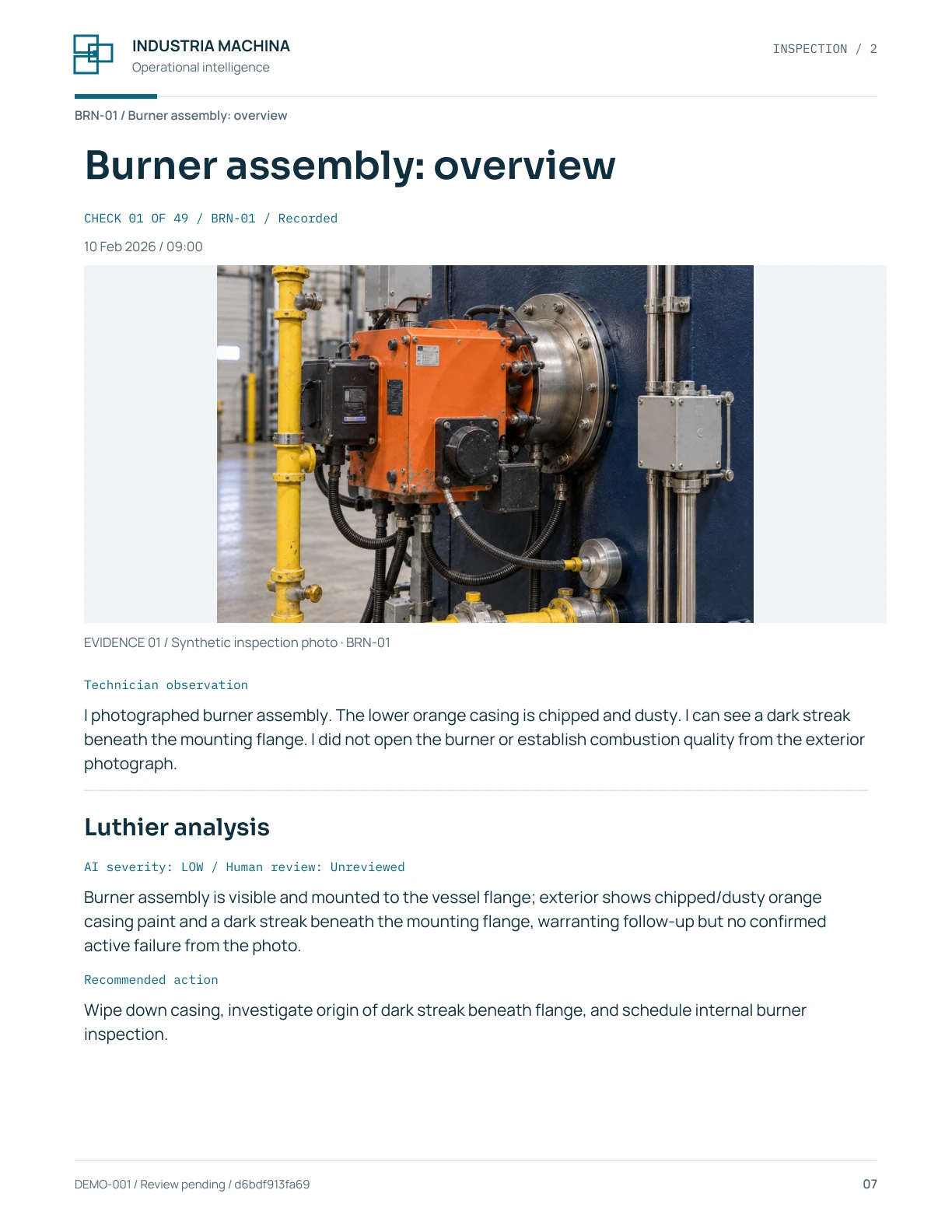

Luthier · AI suggestions for review
Analyze inspection photos with technician observations and relevant machine knowledge. Surface potential defects for human review.
See it in the field
Tuning Fork · Discuss your monitoring needs
Interested in vibration and acoustic monitoring? Discuss your equipment, monitoring requirements and the setup with our team.
Discuss monitoring
Maintenance Intelligence
Keep manuals, reference photos, inspection history, and reviewed findings connected to each physical unit.
See QR accessNo documents needed to request a demo. If you want to explore your own material, we’ll arrange that with you afterward.
Organization roles and equipment access govern who can inspect, review, and manage shared work.
We’ll show an equipment record, a field inspection and the review/report workflow. Then we’ll discuss your equipment and a useful place to start. The session takes 30 minutes; no documents are needed to request a time.
Existing manuals, reference photos and past inspection reports provide the starting material. An administrator reviews and refines the generated checklist before technicians use it.
Prepare and save the inspection on the device while online. Capture photos and observations in that saved inspection offline, using the same device and account. Reconnect to sync; AI analysis and submission require a connection.
Your team does. AI findings are suggestions for human review. Reviewers record their decisions; follow-up work is assigned separately.
Use the demo to walk through how your team prepares inspections, records evidence and reviews findings today. We’ll discuss the fit and any integration requirements before agreeing on a setup.
See an equipment record, a field inspection and the review process. We’ll email you to arrange a 30-minute demo. No documents needed to request a time.